
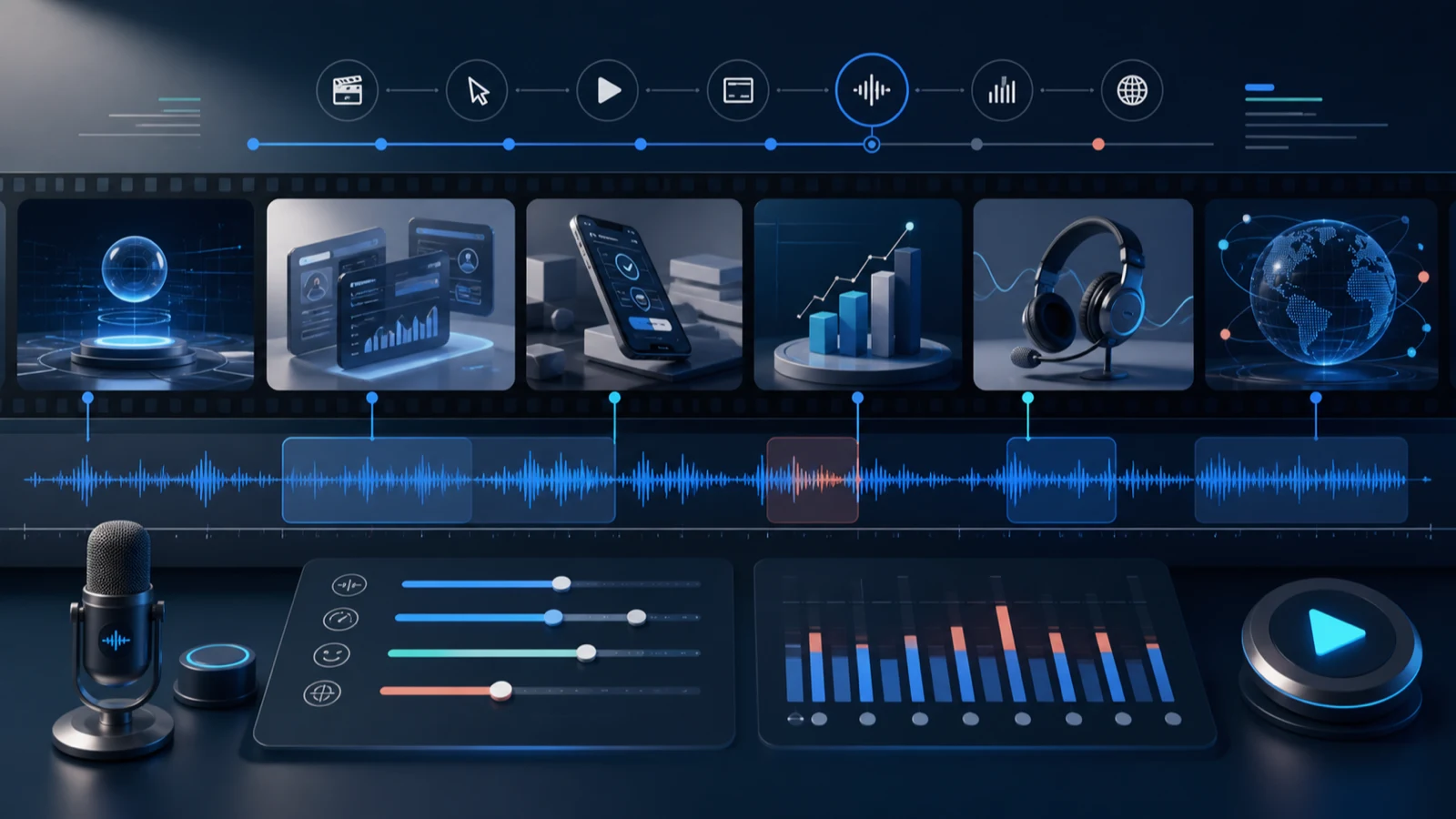
Product-video scripts often begin in the wrong document. Someone writes a polished paragraph, records it, and only then discovers that the interface needs four seconds while the sentence needs nine.
A better starting point is the silent cut. Watch the product action, mark the visual beats a viewer must notice, and give speech only the job that the picture cannot do alone. This approach to text to speech for product videos produces shorter scripts, cleaner edits, and audio sections that can be replaced when the interface changes.
Key takeaways
- Write a beat sheet from the screen recording before writing narration.
- Let the picture show location and motion; use speech for meaning and consequence.
- Generate replaceable sections that match edit boundaries.
- Review the voiceover once without captions and once with the full mix.
Start with thirty seconds of silence
Place the raw screen capture or storyboard on a timeline and mute it. For each meaningful change, write what the viewer can already understand without help.
| Visual beat | Visible without narration? | What speech must add |
|---|---|---|
| User opens the project menu | Yes | Why this menu matters now |
| Cursor selects “Duplicate” | Mostly | What is copied and what is not |
| New project appears | Yes | The benefit: a safe starting point |
| User renames the copy | Yes | None; leave room to watch |
This exercise removes lines such as “Now I am clicking the menu in the top-right corner.” The cursor already communicates that. A more useful line is “Duplicate the project when you want a safe place to test changes.” It gives the action a reason.
Turn the beat sheet into a narration budget
Assign each beat one of three labels:
- Speak: the viewer needs context, a decision, or a warning.
- Breathe: the viewer needs time to locate or read something.
- Bridge: the video changes scenes and needs a short verbal connection.
Then write only the “Speak” and “Bridge” lines. Keep each line attached to its visual beat, not floating in a paragraph. The script becomes an edit map:
01 SPEAK — Duplicate the project when you want a safe place to test changes.
02 BREATHE — no narration
03 BRIDGE — When the copy is ready, invite one reviewer.
The silent beat is a production decision, not missing copy. It protects the viewer’s attention.
Audition the line with the tightest visual window
Choose the beat with the least timing flexibility, the strangest product term, or the most important warning. Use that as the audition line when browsing Voice Art public voices. If a voice cannot make the difficult line understandable inside the available visual window, a charming generic sample is irrelevant.
Carry the shortlist into text to speech and listen for three things:
- Does the key noun remain clear at normal playback speed?
- Does the sentence finish before the visual state changes?
- Does the delivery invite the intended action rather than compete with it?
Approve the voice against the picture. A video voice is part of an edit, not a standalone performance.
Generate by edit boundary
Render one scene, task, or idea per section. Avoid generating an entire walkthrough as one uninterrupted file, even if the script is locked today.
Sectioned audio gives the editor options:
- trim a transition without changing the previous instruction;
- replace a renamed menu item without regenerating the introduction;
- move a scene while keeping its narration attached;
- localize a section after the product team finishes its translation.
Use an identifier shared by the script, timeline marker, and file name. 04-review-invite is enough if all three artifacts use it. The identifier matters more than an elaborate folder system.
Direct with contrast, not mood adjectives
Words such as “friendly” or “professional” are broad. Direction becomes more useful when it describes a contrast the editor can hear:
- helpful, but not excited;
- certain, but not urgent;
- conversational, but not improvised;
- concise, but not clipped.
Add one sentence explaining the listener’s situation: “They are completing this task for the first time while following the screen.” That context helps a reviewer choose between two acceptable takes.
If the wording still feels rushed, change the wording. Direction cannot turn a dense sentence into a spacious one.
Build for the next UI change
Product videos age at the speed of the interface. Before approval, mark every spoken element that can change:
- plan names and prices;
- menu labels and navigation paths;
- numerical claims;
- availability by platform or region;
- policy or permission statements.
Keep volatile facts in their own audio section when possible. A future editor can update one claim without trying to match a splice in the middle of a sentence.
Voice Art’s Generation History retains earlier generated output, so a replacement line can be compared with the accepted delivery. The team should still keep the final script version next to the edit; history shows what was generated, while the project record shows what was approved.
Review in two environments
Review A: no captions, no music
Listen to the voice against the picture. Check that every instruction arrives when it can be acted on and that visual breathing room remains.
Review B: the complete viewing experience
Turn on captions, music, sound effects, and the intended playback device. Watch at normal speed without staring at the waveform. Captions may expose a script mismatch; music may cover a quiet noun; a phone speaker may flatten a subtle delivery.
If the video depends on captions to make unclear narration understandable, fix the narration. Accessibility layers should reinforce the message rather than rescue it.
The product-video release card
Use this card for each cut:
- Every spoken line maps to a visual beat.
- Silent beats remain silent on purpose.
- UI labels match the shipping interface.
- Volatile claims were checked by their owner.
- Sections have stable identifiers.
- The voice was approved in the actual cut.
- Captions match the final audio.
- The final script and approved files share a version.
The checklist is short enough to run for a 20-second clip and strict enough to protect a long walkthrough.
FAQ
Should narration describe every click?
No. Describe a click only when the viewer cannot infer it or needs a warning. Use speech to explain purpose, consequence, and decisions.
How much silence should a product video contain?
Enough for a viewer to locate controls and read important states. Mark silence as a beat so it is not filled accidentally during revision.
Can one voice work across a product-video library?
Yes, if the team keeps a reference take and changes the script density and direction to suit each cut. Consistency comes from a reproducible standard, not merely selecting the same voice name.
What should be regenerated after a UI label changes?
Replace the smallest section that contains the changed label, then review the transition before and after it in the full mix.
When should localization begin?
After the source beat sheet and meaning are stable. Translate by beat rather than by paragraph so each localized line still fits the same visual job.
Narrate what the viewer cannot see
Mute one existing product clip and write its beat sheet. You will quickly find sentences the picture already performs and moments where the viewer receives no explanation at all. Fix those two gaps before generating another take.